this is a video tutorial for the sliBase into Maya.
http://www.paoloemilioselva.it/blogimgs/mydownloads/motioncapture_lowcost.rar
enjoy ^_^
Saturday, March 29, 2008
How to make your own motion-capture-video in Maya - part 2

Friday, March 28, 2008
How to make your own motion-capture-video in Maya
What we are about to do is: create a jmyron blob detection, sending data with oscP5 to a server (localhost or other IP address), reading these data with my sliBase plugin to move object in realtime into Maya.
To make it easy, we are about to create an home-made low-cost motion-capture-video system for Maya.
Take a look at this video
http://www.youtube.com/watch?v=GtxATrZCIYg
I used my motion-capture-video I developed in Java but you can do the same think using JMyron, oscP5 and Processing.
Go to www.processing.org
- download Processing for your operating system
- install processing
- try to load an example to see if it works
- download the library for Procesing
- install it following the instructions
- if your are running Processing on a mac-intel you have to change a file
- download and replace libJMyron.jnilib
- download the library
- install it
Go to examples and try to load JMyron_simpleCamera to check it it works
if you see your webcam-video all it's ok! good! ^_^
otherwise, mail me what happens... ;)
Create a new project in Processing and save as "oscP5sendReceive" and copy this example:
/**
* oscP5sendreceive by andreas schlegel
* example shows how to send and receive osc messages.
* oscP5 website at http://www.sojamo.de/oscP5
*/
import oscP5.*;
import netP5.*;
OscP5 oscP5;
NetAddress myRemoteLocation;
void setup() {
size(400,400);
frameRate(25);
/* start oscP5, listening for incoming messages at port 12000 */
oscP5 = new OscP5(this,12000);
/* myRemoteLocation is a NetAddress. a NetAddress takes 2 parameters,
* an ip address and a port number. myRemoteLocation is used as parameter in
* oscP5.send() when sending osc packets to another computer, device,
* application. usage see below. for testing purposes the listening port
* and the port of the remote location address are the same, hence you will
* send messages back to this sketch.
*/
myRemoteLocation = new NetAddress("127.0.0.1",12000);
}
void draw() {
background(0);
}
void mousePressed() {
/* in the following different ways of creating osc messages are shown by example */
OscMessage myMessage = new OscMessage("/test");
myMessage.add(123); /* add an int to the osc message */
/* send the message */
oscP5.send(myMessage, myRemoteLocation);
}
/* incoming osc message are forwarded to the oscEvent method. */
void oscEvent(OscMessage theOscMessage) {
/* print the address pattern and the typetag of the received OscMessage */
print("### received an osc message.");
print(" addrpattern: "+theOscMessage.addrPattern());
println(" typetag: "+theOscMessage.typetag());
}
Execute it and when you click on the black window you can see the received message into the output-console in the Processing window.
Now, close Processing.
Go to http://slidertime.blogspot.com/search/label/_my%20downloads
- download my latest sliBase plugin for maya (only for Windows)
- install it
This is the system I have used for this tutorial:
Motion capture video system:
Macbook1,1 Intel black 2GB ram, 2GHz CPU with Leopard and integrated iSight
Processing 0135 BETA for MacOSX
JMyron 0025 for Processing
modded libJMyron.jnilib for mac-intel
oscP5 0.9.3 for Processing
Java version 1.5.0_13 (preinstalled in Leopard, you don't need to install)
Maya receiver videodata system:
Alienware Aurora M77 with 2GB ram, AMD X2 2GHz, Geforce Go 7900GTX with WindowsXP Home edition
Maya 8.5
sliBase plugin
Now connect your two machine with a network cable or a wifi or ensure that are both into the same LAN with the same IP address with the last number changed.
I've used a network cable (not crossed, if you don't have it. actually the net-card can exchange RX and TX automatically).
macbook with 192.168.0.1 and alienware with 192.168.0.2
Then, open Processing and reopen oscP5sendReceive example.
make these changes
BEFORE
myRemoteLocation = new NetAddress("127.0.0.1",12000);
AFTER
myRemoteLocation = new NetAddress("192.168.0.2",57110);
BEFORE
OscMessage myMessage = new OscMessage("/test");
AFTER
OscMessage myMessage = new OscMessage("/slibase");
BEFORE
myMessage.add(123); /* add an int to the osc message */
AFTER
myMessage.add(mouseX + " " + mouseY);
Now, run it.
Open maya, execute sliBase and open the script for OSC, as read on the instructions
Start it.
Try to move mouse on the black window in Processing and take a look in Maya, you can see something received into sliBase plugin.
If you can see your mouse coords changing into sliBase, it's all ok! ^_^ good!!!!
otherwise, mail me..... ;)
REMEMBER to run FIRST Processing, THEN start sliBase in Maya, THEN stop sliBase and THEN close Processing!!
Now, oscP5 works, JMyron works, sliBase works... we have to mix them!
Open Processing and create a new project and save it as "sliBaseJMyronOscP5"
and copy the following code:
import oscP5.*;
import netP5.*;
import JMyron.*;

JMyron m;
OscP5 oscP5;
NetAddress myRemoteLocation;

void setup() {
  int w = 320;
  int h = 240;
  size(w,h);
  m = new JMyron();
  m.start(w,h);
  m.findGlobs(1);
  frameRate(25);
  oscP5 = new OscP5(this,57110);
  myRemoteLocation = new NetAddress("192.168.0.2",57110);
  ellipseMode(CENTER);
}

void draw() {
  m.trackColor(255,255,255,255);
  m.update();
  int[] img = m.image();
  loadPixels();
  for(int v = 0; v < width*height; v++)
      pixels[v] = img[v];
  updatePixels();

  int[][] a;

  a = m.globCenters();
  if (a.length >= 2) { // send just first 2 blob
    int[] b1 = a[0];
    int[] b2 = a[1];
    ellipse(b1[0],b1[1],10,10);
    ellipse(b2[0],b2[1],10,10);
    OscMessage myMessage = new OscMessage("/slibase");
    myMessage.add(b1[0]+" "+b1[1]+" "+b2[0]+" "+b2[1]);
    oscP5.send(myMessage, myRemoteLocation);
  } else { // I need this because my sliBase crash if doesn't receive data from OSC
    OscMessage myMessage = new OscMessage("/slibase");
    myMessage.add("0 0 0 0");
    oscP5.send(myMessage, myRemoteLocation);
  }

}

public void stop(){
  m.stop();
  super.stop();
}
Now, run it.
Open Maya and launch the plugin and the OSC-MEL script.
You should see into the message four zeros.
Take 2 white little pieces of paper and try to show to your webcam.
You should see two little circles in Processing and the centers of these circles into the sliBase.
Now all is done.
Assign these values to any object attributes in Maya using sliBase and look what happens... :)
enjoy!
Wednesday, February 27, 2008

Sunday, February 10, 2008
sliBase - v0.2 (with OSC plugin)
In this version I added the OSC (OpenSoundControl) functions to read data from OSC port/address. It requires WinXP and Maya 8.5.
What is possible to do with this plugin?
Take a look at the following video.
Do you want to try this? Ok, firt of all, you need:
- a wiimote controller (without the console, just the controller)
- a tool to read data from wiimote and send it in local (or network) usign OSC protocol (I've used GlovePIE for WindowsXP)
How to use it:
- connect your wiimote to windows by your bluetooth manager application
- open GlovePIE and use this script:
- click on RUN in GlovePIE
- download sliBase_v0.2
- extract it on your Desktop (or wherever you want)
- open Maya 8.5
- go to Plugin Manager and browse to find sliBase.mll plugin into sliBase_v0.2 folder on your Desktop
- open the example scene maya_navigation02.mb in the sliBase_v0.2 folder
- drag&drop the sliBase_getOSC_window.mel into maya
- click START into the "sliBase - get data from OSC" window and you can see the string data from wiimote
- put a "space" character in the "separator" textfield and click outside this textfield to update and you can see the data splitted into all tokens
- now use the following setting:
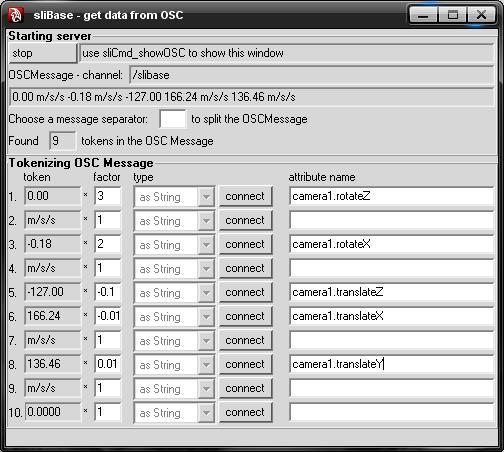
- then click on all the CONNECT BUTTONs with the "attribute name" value not null
- now, move your wiimote to move the "camera1" object into the maya scene in realtime
this is only one example, you can try it usign an audio device or a webcam or something else which communicates with your pc throughthe OSC protocol.
Contact me if you have problem: paoloemilioselva AT gmail.com
Thursday, January 17, 2008
And now.....30
Happy birthday to meeeeeee....happy birthday to meeeeeee! :)
ok, sono passati 30 anni da quando una donna di origini siciliane diede alla luce in quel di Roma un bimbo bellissimo!!!!
c'erano tutti intorno... parenti, amici, pastori, il bue e l'asinello... poi, dopo qualche giorno, arrivano tre strani tipi con dei doni....ehm....no...credo che questa sia un'altra storia....parliamo della mia nascita e del mio compleanno...che è meglio ;)
magari domani...che adesso è tardi ;)
Sunday, December 30, 2007

Saturday, December 15, 2007
Come back at home for holidays...
...and this is the scenario today, Nettuno (Rome) 12th December 2007......WOW!

Monday, December 10, 2007
Wednesday, December 5, 2007
sliBase - v0.1.1
Update:
- LIVE input added
- leave clear the filename to use the live-input capture
Download here (requires WindowsXP, Maya8.5)
Monday, December 3, 2007
sliBase - v0.1
Commands list:
sliCmd_loadBASS
This command loads an audio file of various format (MP3,xm,mod,wav,ecc) listed in the BASS Library input file format specification and allows to modify any attributes of any objects in the Maya scenes, only in "preview" mode.
The preview uses the IDLE maya status to computing, so if you try to rotate the scene, the preview stops and then restart after you release the mouse or stop the rotation (or zoom, or any other actions in Maya scene).
The archive contains:
- sliBase.mll v0.1
- sliBase_loadBASS.mel
- this is the MEL script to manage sliCmd_loadBASS command
- GstNGob.xm
- an audio sample created by me with FastTracker v2.0 for DOS. An old remix of a Commodore-64 game named Ghost'n'Goblins
- BASS.dll
- This is the BASS Library I used to create this plugin. Copyright (c) 1999-2007 Ian Luck. All rights reserved. Check the site for more information.
How to use it:
- Load the plugin from Plugin-manager
- Drag and drop the MEL script into Maya to load it
- Create a scene you want
- Put data into sliBase_loadBASS interface using:
- Load-button to load the audio file
- Root's name to insert the base name of the objects to animate (for example, pCube if you have objects in scene named pCube1, pCube2, pCube3, and so on)
- Max objects to define the maximum number of animated object (for example, if you have 20 objects named pCube1 to pCube20, put 20 in this textfield)
- Attribute to define the attributo to animate during the preview (for example the scaleY attribute of the selected objects)
- Scale to define the scale factor
- Click on PREVIEW button to see the plugin in action
- In this version you can't save the animation.
See the following video for a videotutorial
Saturday, November 17, 2007
sliBase - wiimote and maya, a flight simulator
this video shows how to use a wiimote in maya to simulate a flight with my library.
Saturday, November 3, 2007
sliBase - Maya and realtime audio capture (BASS library)
another ability for my sliBase library.
you can import an mp3 file and associates any objects attributes to the values from the mp3 file.
Friday, November 2, 2007
sliBase - Maya, wiimote and GlovePIE
another video example of my sliBase library.
Now with the wiimote attached ^_^
Tuesday, October 30, 2007
sliBase - Maya OSC Plugin with GlovePIE
this video shows how to use GlovePIE in my sliBase Maya OSC plugin.
In this example I used a mouse as input-device, but you can use anything else just like Wiimote or joystick or datagloves (look at the inputdevice in GlovePIE ;) ).
enjoy ^_^
Youtube version
quicktime lowres version (4mb)
avi highres version (40mb) (I did it with Snagit, maybe you need a codec...mmm)
if you can't see the code in the video, just look here :)
sendOsc ("localhost",57110,"/slibase","x "+Mouse.x+" y "+Mouse.y)
Soon in downloads section! stay tuned ^_^
sliBase - Maya OSC Plugin
Finally, I did it! ^_^
this is the GUI
and this is a video to show how it work.
In the video you can see how I change the OSC channel (slibase in maya-plugin) and how I can use my MCV with this plugin.
Subscribe to:
Posts (Atom)